The best Overwatch 2 settings in 2026 are built around fast target swaps, clear hero silhouettes and stable FPS. Unlike tactical shooters, Overwatch 2 asks you to track vertical movement, flick to supports, react to ultimates and swap heroes without losing your aim feel.
Last verified: June 29, 2026. This guide checks the current official Overwatch 2 patch notes, Blizzard support guidance and live ProSettings Overwatch 2 data before recommending sensitivity, FPS, crosshair, FOV and sound settings.
Use these values as a competitive baseline, not as a permanent rule. A Tracer, Genji or Lucio player may need faster turns than an Ana, Cassidy or Widowmaker player. The right setup is the one that keeps your tracking stable and your hero movement readable.
Best Overwatch 2 settings quick answer
For most PC players, start with 800 DPI, 6.0 in-game sensitivity, about 4800 eDPI, 103 FOV, fullscreen display, 144Hz or higher if your monitor supports it, low shadows, low effects, reduced reflections, simple crosshair, music low and sound effects clear. This gives you a fast but controlled setup that works across hitscan, projectile and support heroes.
If you want the shortest practical rule: prioritize consistent FPS first, then tune sensitivity, then customize crosshair per hero. Cosmetic graphics should never cost you reaction time in a game where one missed sleep dart, rail shot or Suzu timing can decide the fight.
Overwatch 2 sensitivity average and eDPI
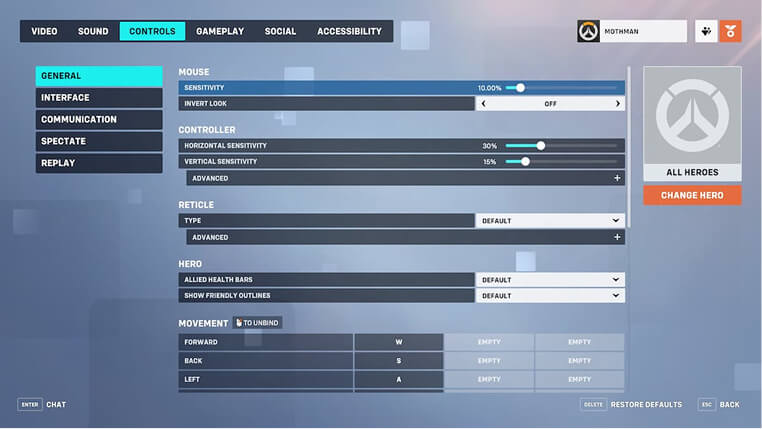
The report keyword Overwatch 2 sensitivity average points to the right idea: you need both DPI and in-game sensitivity. A common competitive starting point is 800 DPI with 6.0 sensitivity, which creates 4800 eDPI. That sits close to the 4800 to 5000 eDPI range many players use as a balanced middle ground.
If tracking feels shaky, lower in-game sensitivity to 5.0 or 5.5. If you play fast heroes and struggle to turn quickly, move toward 6.5 or 7.0. Avoid changing DPI and in-game sensitivity at the same time because you will not know which setting fixed or broke your aim.
- Hitscan baseline: 800 DPI and 4.5 to 6.0 sensitivity for steadier Cassidy, Ashe, Soldier: 76 and Widowmaker aim.
- Projectile baseline: 800 DPI and 5.5 to 7.0 sensitivity for Hanzo, Echo, Pharah, Kiriko and Zenyatta comfort.
- Dive and movement baseline: 800 DPI and 6.0 to 8.0 sensitivity for Tracer, Genji, Lucio, Wrecking Ball and Doomfist turns.
Hero-specific sensitivity can help, but keep it intentional. Widowmaker and Ana often feel better with separate scoped sensitivity. Tracer and Genji usually benefit from a sensitivity that lets you 180 without dragging across the whole desk.
OW2 best FPS settings for performance
OW2 best FPS settings should make fights readable, not just make the graphics menu look minimal. Start with Fullscreen, the highest refresh rate your monitor supports, V-Sync off, Dynamic Render Scale off if it causes blur, and a frame cap slightly above or equal to your monitor refresh rate.
- Display mode: Fullscreen for the lowest distraction and most predictable input feel.
- Field of View: 103 for maximum standard awareness.
- Resolution: native 1920x1080 or your monitor native resolution if FPS stays stable.
- Graphics quality: Low or custom low for competitive play.
- Shadows, local reflections, fog detail and effects: Low or Off to reduce clutter.
- Texture quality: Medium or High only if your GPU has enough VRAM and no stutter.
Do one real test after changing video settings: load a busy fight with multiple ultimates and watch your low FPS moments. A smooth practice range number does not matter if team fights drop frames when particle effects fill the screen.
Overwatch 2 FOV and visibility settings
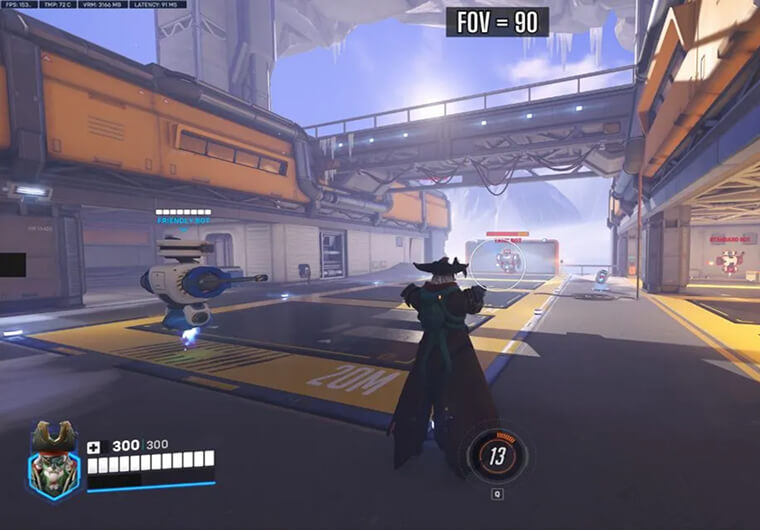
Set Overwatch 2 FOV to 103 unless you have a specific motion-sickness reason not to. The wider view helps you see flankers, supports, projectiles and dive angles. Lower FOV can make targets feel larger, but it costs too much awareness for most heroes.
For visibility, keep enemy outlines clear, avoid excessive brightness, and choose colorblind or outline colors only if they help you separate enemy heroes from map lighting. The best visibility setup is the one that makes enemy movement obvious without washing out ability effects.
Overwatch crosshair pro settings
The report cluster includes Overwatch crosshair pro because crosshair setup changes by hero. A single universal crosshair is convenient, but Overwatch 2 is better with role-based presets. Keep them simple: small enough to see heads, visible enough for bright fights, and not so detailed that they hide targets.
- Hitscan heroes: small dot or short crosshair with high opacity and a clean center gap.
- Projectile heroes: circle or short crosshair that helps lead shots without blocking the target.
- Shotgun or spread heroes: wider circle or crosshair that reminds you of effective close range.
- Support heroes: simple dot or crosshair that stays visible while healing and damaging.
Use green, cyan, magenta or bright yellow if the default color blends into maps for you. Do not copy a pro crosshair blindly if it disappears on your monitor or distracts you during close fights.
OW2 sound settings for footsteps and ultimates
OW2 sound settings matter because Overwatch 2 is full of audio tells: footsteps, reloads, flanks, ability casts and ultimate voice lines. Keep sound effects high, music low, voice chat readable and unnecessary system enhancements off. Headphones are strongly recommended.
If footsteps feel hard to place, check Windows spatial settings, headset software and in-game output device before changing everything. One clean stereo profile is usually easier to trust than stacked virtual surround effects.
- Sound effects: high enough to hear footsteps, reloads and ability cues clearly.
- Music: low or off for ranked play so it does not mask fight information.
- Voice chat: loud enough for callouts, but not so loud it hides game audio.
- Subtitles: useful if you miss ultimate lines or play in a noisy room.
Controller and console settings
On console, Overwatch 2 settings should protect aim assist consistency and fast hero control. Start with dual-zone or linear ramp only if you understand the feel, then tune horizontal and vertical sensitivity together. Keep aim smoothing lower if aim feels delayed, but avoid dropping it so far that tracking becomes jerky.
A practical controller baseline is moderate horizontal sensitivity, slightly lower vertical sensitivity, comfortable aim assist strength, and hero-specific adjustments for scoped heroes. Test one hero at a time because Reinhardt, Mercy, Ana and Sojourn do not ask for the same camera behavior.
How to test your Overwatch 2 settings
Use a simple 20-minute test before you decide whether the setup works. Spend five minutes tracking bots, five minutes flicking between targets, five minutes on your main hero movement, and one Quick Play or ranked warm-up where you focus only on comfort.
If your tracking is good but scoped shots miss, adjust scoped sensitivity. If close fights feel slow, raise regular sensitivity slightly. If aim feels fine in practice but bad in matches, check FPS, input delay and audio before blaming your mouse settings.
Final setup checklist
A strong Overwatch 2 setup should feel readable and repeatable. You want 103 FOV, stable FPS, a clean crosshair, 800 DPI with a tested eDPI, clear sound effects and hero-specific tweaks only where they actually help. Change less often, test more deliberately and keep your setup boring enough to trust under pressure.
If you also play tactical shooters, compare your aim baseline with our CS2 sensitivity settings guide and Valorant sensitivity settings guide. For Battle.net purchases outside the match, our Blizzard gift cards guide covers the storefront side separately.