The best Apex Legends sensitivity settings in 2026 start with a stable baseline: 800 DPI, 1.2 to 1.8 in-game mouse sensitivity, 1.0 ADS multiplier, 104 to 110 FOV, fullscreen mode, V-Sync off, and graphics tuned for steady FPS. Apex is not a slow tactical shooter. It is a tracking-heavy battle royale where you need clean recoil control, fast armor-swap fights, vertical target tracking, and enough turn speed to survive third parties.
This guide covers best sensitivity settings, best sensitivity for pc, best controller sensitivity, best mouse sensitivity, best dpi settings, best ads sensitivity, best aim settings, best graphics settings, best fps settings, best performance settings, best competitive settings, low input lag settings, best controller settings, best aim assist settings, best deadzone settings and best trigger settings for Apex Legends.
Before you lock in ranked: keep your next Battle Pass, skin bundle or platform-wallet top-up simple with Apex Legends gift cards from AR-PAY. It is the fastest way to fund your Apex account without interrupting a settings test or a ranked session.
Best Apex Legends Sensitivity Settings
For most PC players, the safest Apex Legends sensitivity settings are 800 DPI with 1.2 to 1.8 in-game sensitivity. That creates an eDPI range of 960 to 1440, which is fast enough for close-range strafes but controlled enough for Flatline, R-301, Nemesis and Hemlok beams. If you overshoot enemies during hip-fire fights, lower in-game sensitivity by 0.1. If you cannot turn on Octane, Horizon or Pathfinder movement fast enough, raise it by 0.1 until your 180-degree turn feels natural.
| Setting | Recommended baseline | Why it works |
|---|---|---|
| Mouse DPI | 800 DPI | Simple tuning, stable tracking and easy eDPI math. |
| In-game sensitivity | 1.2 to 1.8 | Controlled range for most PC players. |
| eDPI | 960 to 1440 | Fast enough for Apex movement without losing precision. |
| ADS multiplier | 1.0 | Keeps hip-fire and ADS muscle memory consistent. |
| FOV | 104 to 110 | Better awareness in third-party fights and vertical duels. |
| Polling rate | 1000 Hz | Lower input delay on modern mice. |
| Raw input | On, if available | Keeps mouse movement direct and predictable. |
Apex rewards a slightly higher eDPI than games such as Valorant or CS2 because enemies slide, superglide, climb, fly, strafe wide and fight through ability clutter. A very low sensitivity can feel clean in the Firing Range but fail when a Horizon lift, Valkyrie jet, Pathfinder grapple or close-range shotgun fight forces wide camera movement.
Best Sensitivity for PC in Apex Legends
The best sensitivity for PC is the one that lets you do three things without thinking: track a strafing target at 15 meters, control recoil at 40 meters, and turn 180 degrees without lifting your mouse twice. Start at 800 DPI and 1.5 in-game sensitivity. Play one Mixtape match or ten minutes in the Firing Range. If your crosshair floats past targets, drop to 1.4. If you cannot keep up with slide jumps and close-range swings, move to 1.6.
For a smaller mouse pad, 800 DPI with 1.7 to 2.0 can be more practical. For a large desk mat and arm aim, 400 DPI with 2.4 to 3.0 can recreate a similar eDPI while keeping fine control. Avoid changing DPI and in-game sensitivity at the same time. Change one value, test it, then adjust again.
Best Apex Legends Crosshair Codes
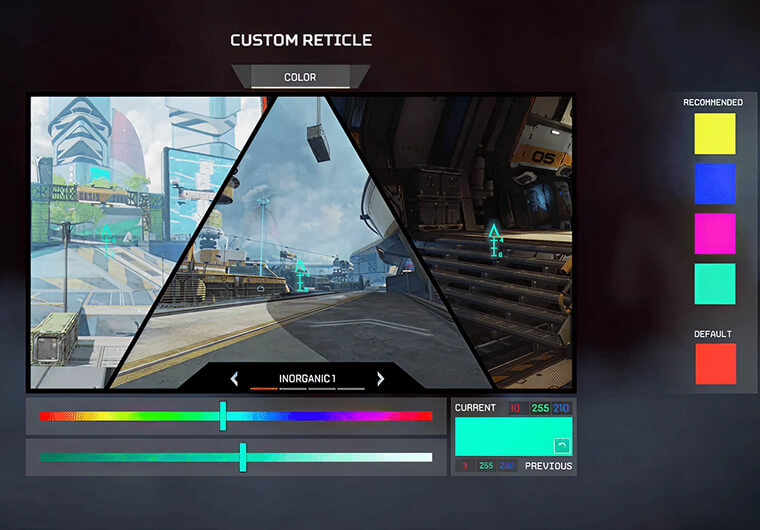
Apex Legends does not use shareable crosshair codes in the same way as Valorant. Your reticle control comes from the in-game reticle color tools, optic choice, laser sight discipline, FOV and visibility settings. The best practical crosshair setup is a bright reticle color that stays visible on World’s Edge lava, Storm Point grass, Broken Moon interiors and dark indoor fights.
- Use a high-contrast reticle color such as cyan, magenta or bright green if the default red blends into ability effects.
- Keep damage numbers readable but not oversized; visual noise can hide armor-crack timing.
- Match ADS sensitivity to your optic habits. If 2x and 3x tracking feels too fast, lower ADS multiplier before changing hip-fire sensitivity.
Best Apex Legends DPI Settings
The best Apex Legends DPI settings are 800 DPI for most players, 400 DPI for low-sens arm aimers, and 1600 DPI only if you intentionally lower in-game sensitivity to keep eDPI controlled. eDPI is DPI multiplied by in-game sensitivity. For example, 800 DPI with 1.5 sensitivity equals 1200 eDPI.
| DPI | Good in-game range | Example eDPI | Best for |
|---|---|---|---|
| 400 | 2.4 to 3.2 | 960 to 1280 | Large mouse pads and arm aim. |
| 800 | 1.2 to 1.8 | 960 to 1440 | Most PC players. |
| 1600 | 0.6 to 0.9 | 960 to 1440 | High-DPI users who want smooth cursor feel. |
Pro settings databases show Apex players clustering around higher eDPI than tactical shooters because Apex has faster movement and wider-angle fights. One tracked pro-settings dataset lists a typical range around 1.0 to 2.5 sensitivity at 800 DPI, which fits the practical baseline above.
Best ADS Sensitivity and Aim Settings
The best ADS sensitivity for Apex Legends is usually 1.0 if your hip-fire sensitivity is already controlled. Apex asks you to switch between hip-fire tracking, shotgun flicks, SMG sprays and mid-range ADS beams constantly. A 1.0 ADS multiplier keeps that transition predictable. Lower ADS only if 2x, 3x or 4x tracking feels slippery.
| Aim setting | Recommended value | When to adjust |
|---|---|---|
| ADS multiplier | 1.0 | Lower slightly if scoped tracking overshoots. |
| Per optic sensitivity | Off at first | Enable only after your base sens is stable. |
| FOV | 104 to 110 | Lower to 100 if targets look too small. |
| Mouse acceleration | Off in OS and software | Keeps muscle memory consistent. |
| NVIDIA Reflex / low latency | On or On + Boost if available | Helps reduce input delay on supported systems. |
Your best aim settings should make recoil feel boring. Stand in the Firing Range, pick an R-301, Flatline and Nemesis, and shoot a mid-range target without moving. Then add strafing. If the first test is easy but the strafe test falls apart, your sensitivity is probably too high for real fights.
Best Apex Legends Graphics Settings
The best Apex Legends graphics settings prioritize stable frames, clear target visibility and low input lag over cinematic quality. EA’s official PC requirements list 6 GB RAM and a GTX 950 or Radeon HD 7790 as the minimum baseline, while the recommended spec targets smoother 60 FPS with hardware such as a GTX 970 or Radeon R9 290. Competitive players should still tune beyond minimum requirements because unstable frame pacing can make recoil and tracking feel inconsistent.
| Graphics setting | Competitive recommendation | Reason |
|---|---|---|
| Display mode | Fullscreen | Best input consistency. |
| V-Sync | Off | Reduces input delay. |
| Adaptive resolution FPS target | 0 or off | Avoids blurry target visibility. |
| Texture Streaming Budget | Match VRAM; low on weak GPUs | Prevents stutter without wasting memory. |
| Model Detail | Low or Medium | Cleaner visuals and better FPS. |
| Effects Detail | Low | Less ability clutter in fights. |
| Impact Marks | Low | Reduces visual noise. |
| Ragdolls | Low | Cleaner end-fight visibility. |
For hardware planning, check EA’s official Apex Legends PC requirements before chasing high refresh-rate settings on an older laptop or low-end desktop.
Best Apex Legends Settings for Low-End PCs
The best Apex Legends settings for low-end PCs are fullscreen mode, V-Sync off, low model detail, low effects, low impact marks, low ragdolls, and a conservative texture streaming budget. If your GPU has 2 GB to 4 GB VRAM, do not copy a high-end player’s texture settings. Your goal is not the prettiest Firing Range screenshot; it is consistent frame pacing when Bangalore smoke, Catalyst walls, grenades and multiple squads collide.
- Close browser tabs, overlays and launchers before ranked if your CPU is already near 100 percent.
- Keep the game on an SSD if possible; Apex needs at least 75 GB of free space according to EA’s PC requirements.
- Use a frame cap you can actually hold. A stable 120 FPS often feels better than jumping between 170 and 90.
Best Apex Legends Settings for FPS
The best Apex Legends settings for FPS depend on your monitor and hardware, but the target is simple: hold a stable frame rate during fights, not only while standing still. If you have a 144 Hz monitor, tune for a steady 144 FPS. If you have a 240 Hz setup, reduce visual settings until fights stay close to your cap. Frame drops during close-range tracking make your sensitivity feel inconsistent even when the mouse settings are correct.
| FPS target | Recommended cap | Best use case |
|---|---|---|
| 60 FPS | 60 or 75 cap | Entry-level hardware and casual play. |
| 120 FPS | 120 or 141 cap | Low-end high-refresh monitors. |
| 144 FPS | 141 or 144 cap | Most competitive setups. |
| 240 FPS | 237 or 240 cap | High-end PCs and 240 Hz monitors. |
Best Performance Settings and Low Input Lag Settings
Best performance settings and low input lag settings work together. Lower graphics reduce GPU load, but you also need stable frametimes, a responsive display mode and clean input. Keep V-Sync off, use fullscreen, cap FPS slightly below unstable peaks, update GPU drivers, and avoid heavy overlays while playing ranked. If your mouse feels different every match, check FPS consistency before changing sensitivity again.
EA’s June 22, 2026 Overclocked midseason patch notes mention balance changes, fixes and ongoing competitive-integrity work, which is a reminder to retest settings after major updates rather than assuming last season’s feel is perfect. Read the official Overclocked midseason patch notes if you are tuning after Split 2 changes.
Best Competitive Settings for Apex Legends
Best competitive settings should reduce decisions during fights. Use one sensitivity for at least three sessions before judging it. Keep FOV stable, avoid switching controller response curves daily, and test every change in the same routine: Firing Range recoil, one Mixtape match, then ranked. Settings are not magic, but a stable setup removes one excuse when fights get messy.
- Use 800 DPI and 1.5 sensitivity as the first PC test point.
- Use 1.0 ADS unless scoped fights feel clearly too fast.
- Use 104 to 110 FOV depending on target size and monitor distance.
- Use low visual settings if FPS drops during real fights.
Best Controller Settings for Apex Legends
The best controller settings for Apex Legends usually start with Look Sensitivity 4 or 5, ADS Sensitivity 3 or 4, Classic or Linear response curve, and the lowest deadzone that does not cause stick drift. Classic gives a steadier curve for many players. Linear feels more direct but punishes stick drift and shaky thumbs. If you are switching from another battle royale, start with Classic first, then test Linear after your recoil control feels stable.
| Controller setting | Safe baseline | Adjustment tip |
|---|---|---|
| Look Sensitivity | 4 or 5 | Use 5 if you struggle to turn on close swings. |
| ADS Sensitivity | 3 or 4 | Use 3 for steadier mid-range beams. |
| Response Curve | Classic or Linear | Classic for control; Linear for direct input. |
| Look Deadzone | Small or None | Use None only if your stick does not drift. |
| Movement Deadzone | Small | Large can make strafing feel delayed. |
| Trigger Deadzones | Low if supported | Helps semi-auto and shotgun timing. |
Best Aim Assist, Deadzone and Trigger Settings
Best aim assist settings are less about chasing a secret value and more about keeping your stick input clean. Do not raise deadzone to hide bad aim. Raise it only when the crosshair moves on its own. For best deadzone settings, start low, rest your thumbs off the sticks, and watch for drift. If the reticle moves, increase deadzone one step. For best trigger settings, use shorter trigger travel or digital trigger mode if your controller supports it, because Apex rewards fast shotgun, Wingman and burst timing.
How to Find Your Best Apex Legends Sensitivity in 20 Minutes
Use this quick test before ranked. First, set 800 DPI, 1.5 sensitivity and 1.0 ADS. Second, track a moving dummy or strafing friend for five minutes without shooting. Third, control an R-301, Flatline and Nemesis at mid range. Fourth, play one Mixtape match and write down only one problem: overshooting, undershooting or losing close-range turns. Fifth, change one setting by a small amount and repeat. The best Apex Legends sensitivity settings are built from repeatable tests, not from copying one pro once.
Last setup check: if you are tuning before a new season purchase, event skin or Battle Pass grind, buy Apex Legends gift cards from AR-PAY and keep your platform spending separate, fast and ready before the squad queues.
FAQ
What are the best Apex Legends sensitivity settings?
The best Apex Legends sensitivity settings for most PC players are 800 DPI, 1.2 to 1.8 in-game sensitivity, 1.0 ADS multiplier, 104 to 110 FOV, fullscreen mode, V-Sync off and graphics tuned for stable FPS.
What is the best DPI for Apex Legends?
The best DPI for Apex Legends is usually 800 DPI. It gives clean tracking, easy eDPI math and enough flexibility for low or medium in-game sensitivity. 400 DPI and 1600 DPI can also work if eDPI stays controlled.
What is the best ADS sensitivity for Apex Legends?
The best ADS sensitivity is usually 1.0 because it keeps hip-fire and ADS aim consistent. Lower it slightly only if scoped tracking feels too fast with 2x, 3x or 4x optics.
Does Apex Legends have crosshair codes?
Apex Legends does not use universal crosshair codes like Valorant. Use a bright reticle color, clean optic choices and visibility settings that keep the reticle readable across maps and ability effects.
What are the best Apex Legends settings for FPS?
The best Apex Legends settings for FPS are fullscreen mode, V-Sync off, low effects, low model detail, low impact marks, low ragdolls, a VRAM-appropriate texture budget and an FPS cap your PC can hold during fights.
What are the best controller settings for Apex Legends?
The best controller settings usually start with Look Sensitivity 4 or 5, ADS Sensitivity 3 or 4, Classic or Linear response curve, Small or None deadzone, and low trigger deadzones if your controller supports them.