The best Marvel Rivals sensitivity settings in 2026 start with a stable baseline: 800 DPI, 3.0 to 5.0 mouse sensitivity, lower scoped/ADS sensitivity for precision heroes, fullscreen mode, V-Sync off, and graphics tuned for steady FPS. Marvel Rivals is fast, vertical and ability-heavy, so your aim settings need to handle tracking, flicking, flying targets and close-range chaos.
This guide covers best sensitivity settings, best sensitivity for pc, best mouse sensitivity, best dpi settings, best ads sensitivity, best aim settings, best graphics settings, best fps settings, best performance settings, best competitive settings, low input lag settings, best controller settings, best controller sensitivity, best aim assist settings, best deadzone settings and best trigger settings for Marvel Rivals.
Before you test a new ranked setup: top up safely with gaming gift cards from AR-PAY for platform credit, battle pass purchases or cosmetics without slowing down your next session.
Best Marvel Rivals Sensitivity Settings
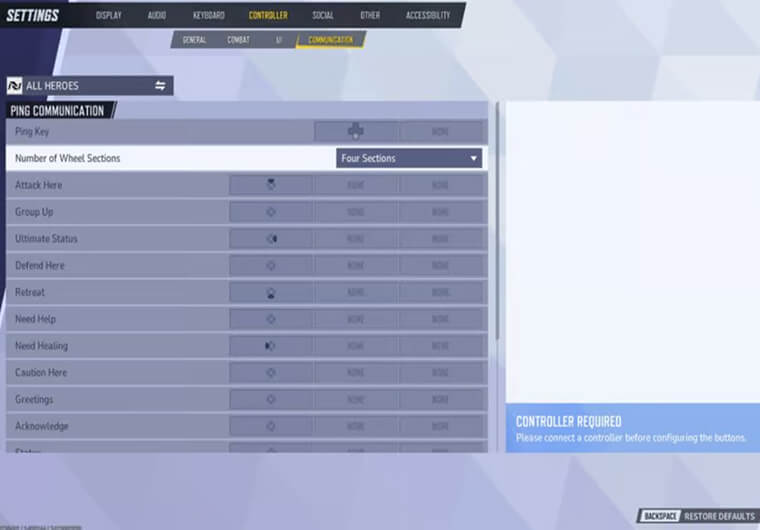
For most PC players, the best Marvel Rivals sensitivity settings sit in a controlled low-to-medium range. Start with 800 DPI and 3.0 to 5.0 in-game sensitivity. If you play hitscan heroes, stay closer to the lower end. If you play melee-heavy or high-mobility heroes, you may prefer the upper end so you can turn quickly during dives.
| Setting | Recommended baseline | Best for |
|---|---|---|
| Mouse DPI | 800 DPI | Reliable desktop control and easy tuning. |
| Mouse sensitivity | 3.0 to 5.0 | Most PC players and mixed hero pools. |
| Scoped/ADS sensitivity | 70% to 90% of hip-fire feel | Precision heroes and long sightlines. |
| Controller horizontal | Medium-high | Fast turns against flankers and flying heroes. |
| Controller vertical | Medium | Cleaner recoil and vertical tracking. |
| Deadzone | As low as possible without drift | Faster stick response. |
| Aim assist strength | High but controlled | Controller tracking without sticky target swaps. |
| V-Sync | Off | Lower input delay. |
A good Marvel Rivals sensitivity should let you do three things without panic: track a flying target, flick to a close diver, and make small corrections on a distant support. If one of those fails every fight, adjust by small steps instead of rebuilding your setup.
Best Sensitivity for PC in Marvel Rivals
The best sensitivity for pc depends on hero pool. Punisher-style tracking, Hela-style precision and Star-Lord-style tracking all reward calmer mouse control. Spider-Man, Black Panther and other movement-heavy heroes can tolerate a faster turn speed, but even then you still need enough control to land follow-up shots after movement abilities.
For the best mouse sensitivity, start at 800 DPI and 4.0 sensitivity. If you overshoot heads or lose targets during strafes, lower to 3.5. If you cannot turn on flankers or mobile heroes, raise to 4.5. Give each change two matches before judging it.
Best Marvel Rivals DPI Settings
The best Marvel Rivals DPI settings are 400, 800 or 1600 DPI, with 800 DPI as the easiest recommendation. DPI alone does not make aim better; it only sets the hardware side of your mouse speed. The important number is how DPI combines with in-game sensitivity and whether your hand can repeat the same correction under pressure.
- 400 DPI: try 6.0 to 10.0 sensitivity if you prefer arm aim and a large mousepad.
- 800 DPI: try 3.0 to 5.0 sensitivity for the cleanest starting range.
- 1600 DPI: try 1.5 to 2.5 sensitivity if your mouse sensor and hand control are steady.
DPI, eDPI and Pro Settings Explained
eDPI means DPI multiplied by in-game sensitivity. In Marvel Rivals, eDPI is not a perfect comparison across every hero because scoped modes, projectile speed, melee movement and camera work all change the feel. Still, eDPI is useful when you want to compare low, medium and high sensitivity without copying random pro settings blindly.
- 800 DPI x 4.0 sensitivity = 3200 eDPI-style reference.
- 400 DPI x 8.0 sensitivity = 3200 eDPI-style reference.
- 1600 DPI x 2.0 sensitivity = 3200 eDPI-style reference.
Pro settings are most useful as a range. A hitscan specialist may use a lower setup for precision, while a dive player may choose faster turns. Copy the principle, not just the number: stable FPS, low input delay, comfortable tracking and one repeatable warm-up routine.
Best ADS Sensitivity for Marvel Rivals
The best ads sensitivity should be slightly slower than your normal camera feel. If scoped or precision heroes feel twitchy, set ADS or scoped sensitivity around 70% to 90% of your hip-fire feel. That gives you finer control while still letting you correct against moving targets.
If your scoped shots stop short, raise ADS by 5%. If your crosshair passes targets, lower ADS by 5%. Keep the change small because Marvel Rivals fights move quickly and over-tuning one scoped hero can make the rest of your roster feel worse.
Best Aim Settings for Marvel Rivals
The best aim settings combine sensitivity, hero role and performance. For hitscan and precision heroes, use a slower controlled setup. For projectile heroes, use a sensitivity that helps you lead targets without jerky corrections. For melee and dive heroes, make sure you can turn 180 degrees comfortably after an ability engage.
Use a hero-specific test: play five minutes of practice range tracking, then one quick match focusing only on crosshair placement and target reacquisition. If your aim feels wrong only when FPS drops, fix performance before changing sensitivity.
Best Marvel Rivals Crosshair Codes
There are no universal Best Marvel Rivals Crosshair Codes that work like Valorant import codes for every player and hero. Marvel Rivals has hero-specific readability needs, so the better approach is to make your reticle visible, simple and consistent. Use a high-contrast color, avoid distracting outlines if they cover small targets, and keep the reticle easy to see during ability effects.
For precision heroes, use a small clean reticle. For projectile and support heroes, use a shape that helps you track movement and lead shots. For melee heroes, prioritize visibility during close-range ability effects rather than tiny crosshair detail.
Best Marvel Rivals Graphics Settings
Marvel Rivals is more demanding than many competitive shooters. The official PC requirements list Windows 10 64-bit 1909 or later, 16 GB RAM, DirectX 12, 70 GB storage, and a GTX 1060/RX 580/Intel Arc A380 minimum GPU: Marvel Rivals PC requirements. Use that as the floor, then tune settings for consistent frame time.
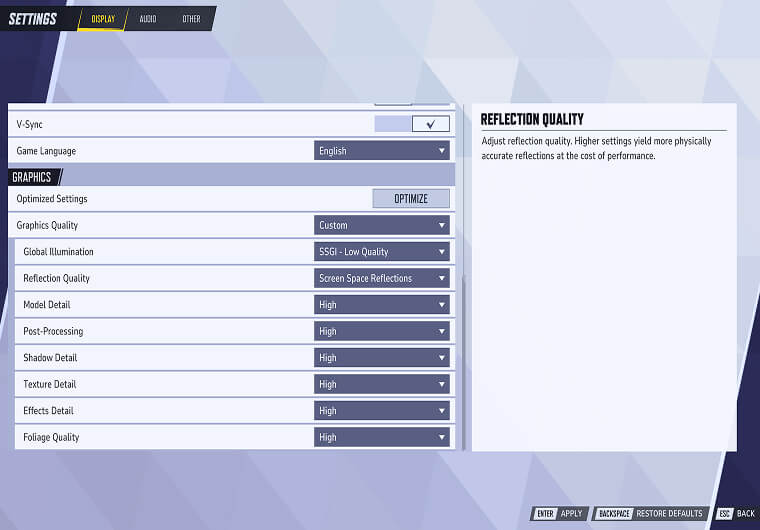
The best Marvel Rivals graphics settings are the ones that keep fights readable when ultimates, shields, projectiles and destructible effects fill the screen. Use fullscreen mode, V-Sync off, motion blur off, lower effects if your GPU struggles, and a frame cap your PC can hold in real team fights.
- Display mode: Fullscreen.
- V-Sync: Off for lower input lag.
- Motion blur: Off for cleaner target tracking.
- Effects quality: Medium or Low if team fights cause drops.
- Textures: Match your VRAM; do not sacrifice frame stability for cosmetics.
- Upscaling: Use quality or balanced modes only if native FPS is unstable.
Best Marvel Rivals Settings for Low-End PCs
The best Marvel Rivals settings for low-end PCs focus on stability first. Lower effects, shadows and post-processing before lowering resolution too far, because you still need to read hero silhouettes and projectiles. If your system meets the minimum spec but stutters, update GPU drivers, close overlays and set the game to high-performance graphics mode in Windows.
The official support guide also recommends clean GPU driver installation for frequent crashes or stuttering and setting Marvel Rivals to high-performance mode in Windows graphics settings. That matters for sensitivity because unstable frame time makes a good sensitivity feel inconsistent.
Best Marvel Rivals Settings for FPS
Marvel Rivals’ July 2, 2026 patch notes included fixes and optimizations, including a Rogue issue where Ability Absorption could cause brief lag or stuttering: Marvel Rivals July 2 patch notes. That is a useful reminder to retest FPS and sensitivity after patches, especially if a hero ability affects performance.
The best Marvel Rivals settings for FPS are fullscreen mode, V-Sync off, motion blur off, stable frame cap, low-heavy effects if needed, and background recording disabled unless your PC can handle it. Do not judge sensitivity while your FPS is swinging wildly between calm moments and full team fights.
Best Performance Settings and Low Input Lag Settings
The best performance settings reduce delay between your hand and the screen. Use a wired mouse or controller, keep polling rate stable, turn off unnecessary overlays, run the game from SSD, and choose a frame cap that avoids sudden drops. Low input lag settings matter because even a small delay can make tracking heroes like Iron Man, Spider-Man or Star-Lord feel late.
Steam’s Marvel Rivals page also mirrors the PC hardware floor and storage guidance, which is useful before blaming sensitivity for performance issues: Marvel Rivals on Steam.
Best Competitive Settings for Marvel Rivals
The best competitive settings are stable, readable and hero-aware. Keep one core mouse sensitivity, then adjust scoped sensitivity only where needed. Use clear audio, a visible reticle, stable FPS and a short warm-up routine. Competitive Marvel Rivals is too chaotic for constant setting changes after every loss.
- Keep sensitivity unchanged for at least one full session.
- Test tracking, flicks and target swaps separately.
- Use one reticle color that stays visible during ability effects.
- Cap FPS if uncapped performance causes stutter.
- Tune by hero class: precision, projectile, support, melee or dive.
Best Controller Settings for Marvel Rivals
The best controller settings for Marvel Rivals should support fast camera movement without losing fine aim. Start with medium-high horizontal sensitivity, medium vertical sensitivity, low deadzone, high but controlled aim assist, and a response curve that does not feel delayed. Controller players need fast turns for flankers but enough friction to stay on mobile targets.
- Best controller sensitivity: medium-high horizontal and medium vertical, then tune by hero.
- Best aim assist settings: keep aim assist strong enough for tracking, but avoid a window so large that it drags you between targets.
- Best deadzone settings: as low as possible without stick drift, often around 5 to 8 on a healthy controller.
- Best trigger settings: use short trigger stops or quick trigger mode if your controller supports it.
If your aim sticks to the wrong enemy in crowded fights, lower aim assist window size. If you cannot stay on fast targets, raise aim assist strength slightly. Change one controller setting at a time and test against moving heroes, not stationary bots only.
How to Find Your Best Marvel Rivals Sensitivity in 20 Minutes
Use a short repeatable test instead of changing settings after every match.
- Set 800 DPI and 4.0 mouse sensitivity, or your controller baseline.
- Track a moving target for five minutes without changing settings.
- Play one quick match on a familiar hero.
- If you overflick, lower sensitivity by 5% to 10%.
- If you cannot turn quickly enough, raise sensitivity by 5% to 10%.
- If aim feels bad only during big team fights, fix FPS first.
Quick Checklist Before Ranked
- DPI fixed in mouse software.
- V-Sync off and fullscreen enabled.
- Motion blur off.
- FPS stable in full team fights.
- Reticle visible on bright and dark maps.
- Controller deadzone checked for drift.
- Scoped/ADS sensitivity tested on actual precision heroes.
Ready to save your setup and jump back in? Use ARPAY gaming gift cards for quick platform credit, battle pass spending or cosmetic purchases before your next Marvel Rivals session.
FAQ
What are the best Marvel Rivals sensitivity settings?
The best Marvel Rivals sensitivity settings for most PC players are 800 DPI with 3.0 to 5.0 mouse sensitivity, lower scoped sensitivity for precision heroes, and graphics settings that keep FPS stable.
What is the best DPI for Marvel Rivals?
The best DPI for Marvel Rivals is usually 800 DPI because it is easy to control and simple to tune. 400 DPI works for arm aim, while 1600 DPI needs lower in-game sensitivity.
What is the best ADS sensitivity for Marvel Rivals?
The best ADS sensitivity is usually 70% to 90% of your hip-fire feel. Lower it if scoped shots pass targets, and raise it slightly if you stop short.
Does Marvel Rivals have crosshair codes?
Marvel Rivals does not rely on universal crosshair codes like Valorant. Use hero-friendly reticle settings with high contrast, clear visibility and minimal distraction.
What are the best Marvel Rivals settings for FPS?
The best Marvel Rivals settings for FPS are fullscreen mode, V-Sync off, motion blur off, lower effects if needed, stable frame cap and updated GPU drivers.
What are the best controller settings for Marvel Rivals?
The best controller settings use medium-high horizontal sensitivity, medium vertical sensitivity, low deadzone without drift, controlled aim assist and fast trigger settings if supported.